ArmyIgnitED (Service Member)
MUST have an approved education goal.
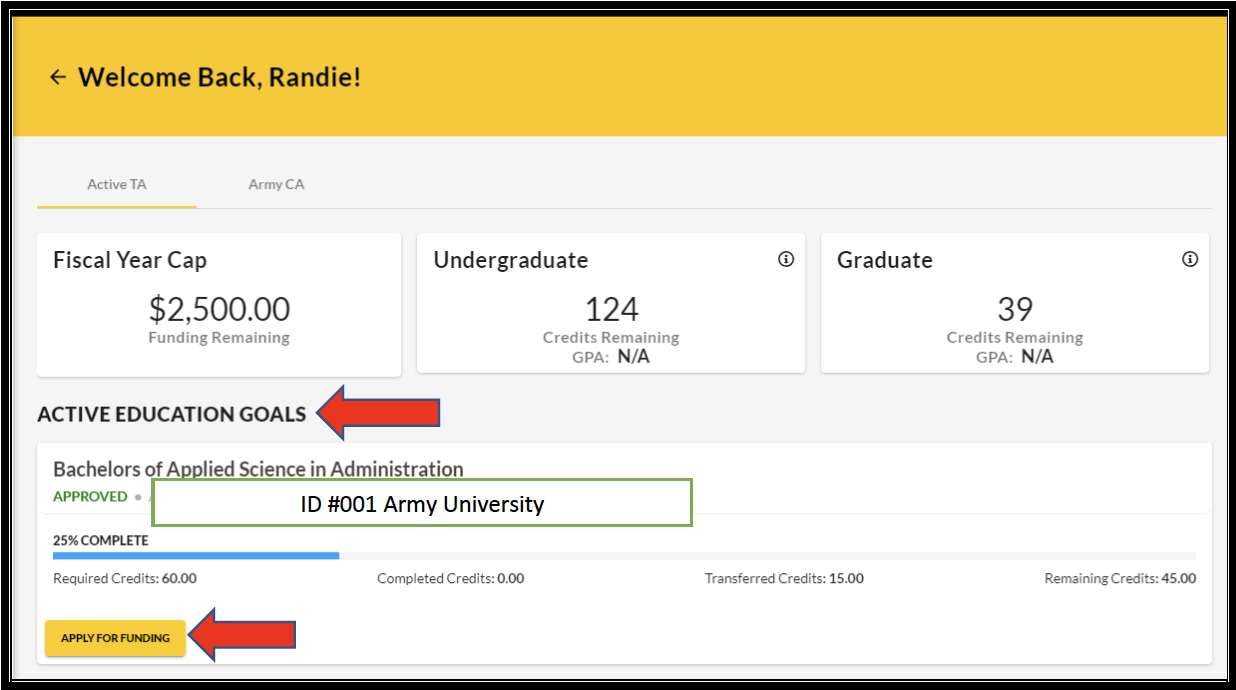
- From ArmyIgnitED Dashboard, locate ‘Active Education Goals’ and then select ‘Apply for Funding’:
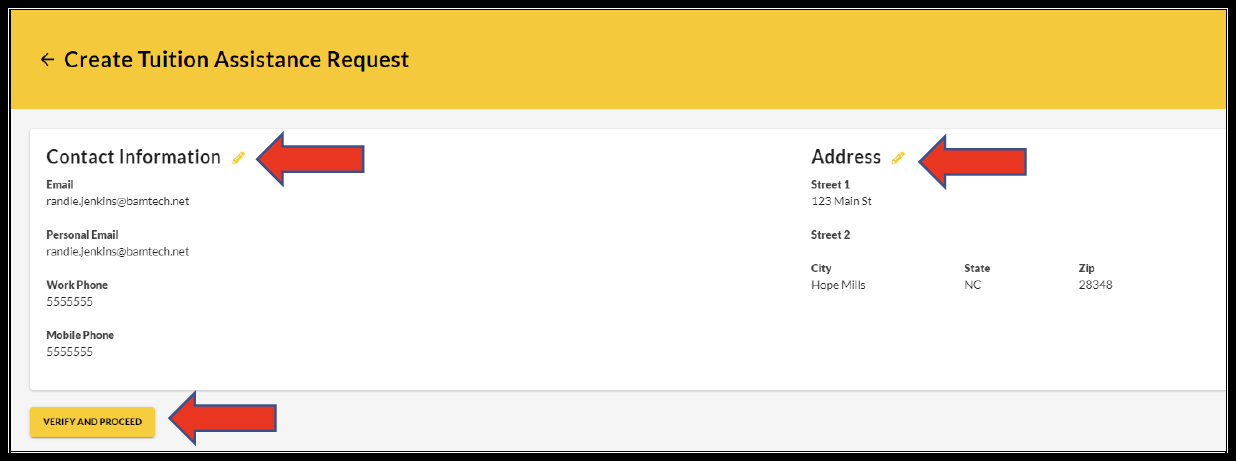
- Verify ‘Contact Information’:
- If information needs to be updated, select ‘yellow pencil icon’ next to the designated area.
- If all information is correct, click ‘Verify and Proceed’
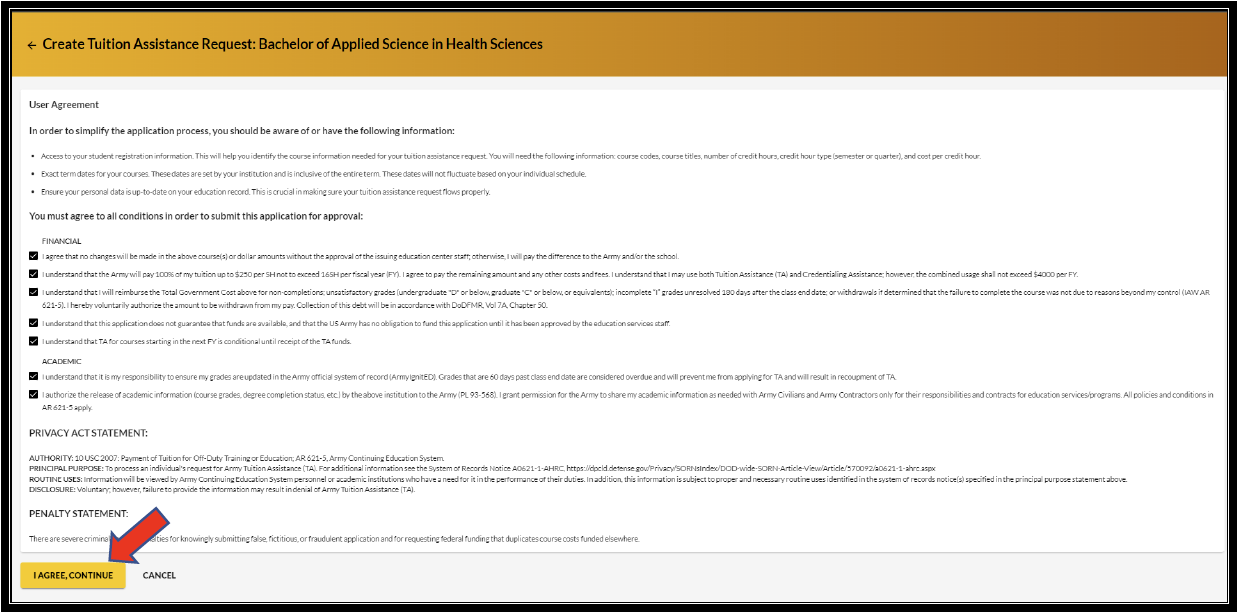
- Acknowledge the ‘User Agreement’ – Read fully, check ALL boxes to agree to the conditions and then click ‘I Agree Continue’
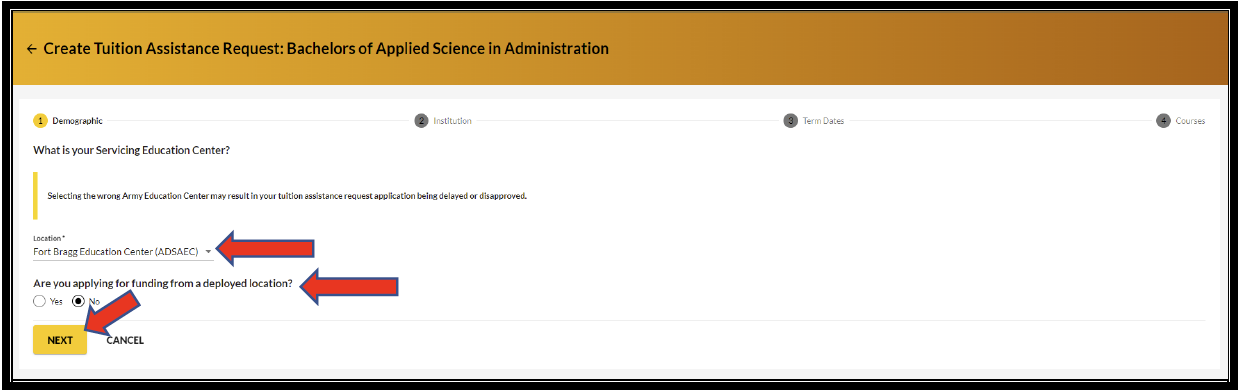
- Verify current ‘Education Center’, identify if ‘deployed’ then select ‘Next’:
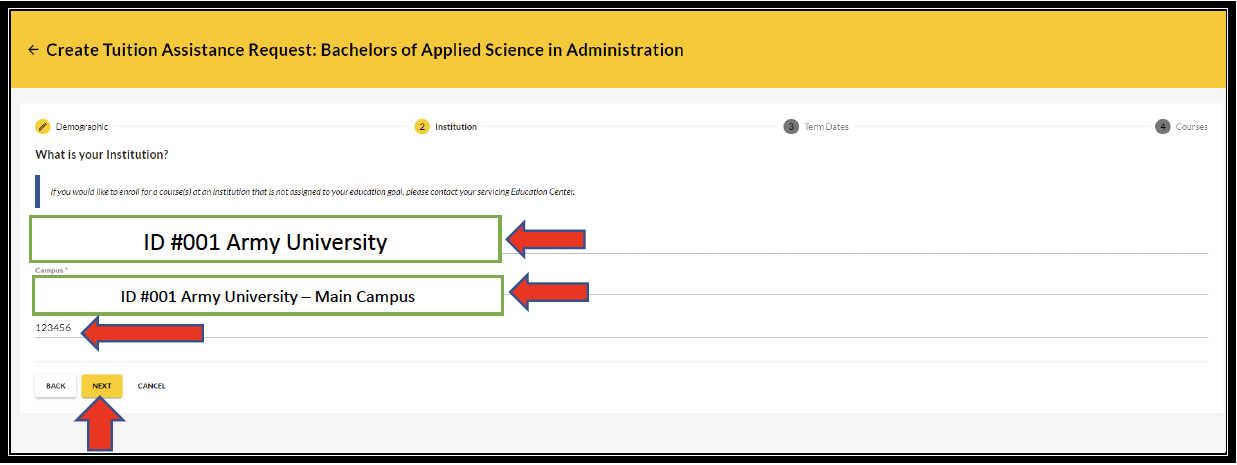
- Verify ‘Education Institution’ is correct; ensure correct ‘Campus’ is selected; input ‘Institutional Student ID’ then click ‘Next’:
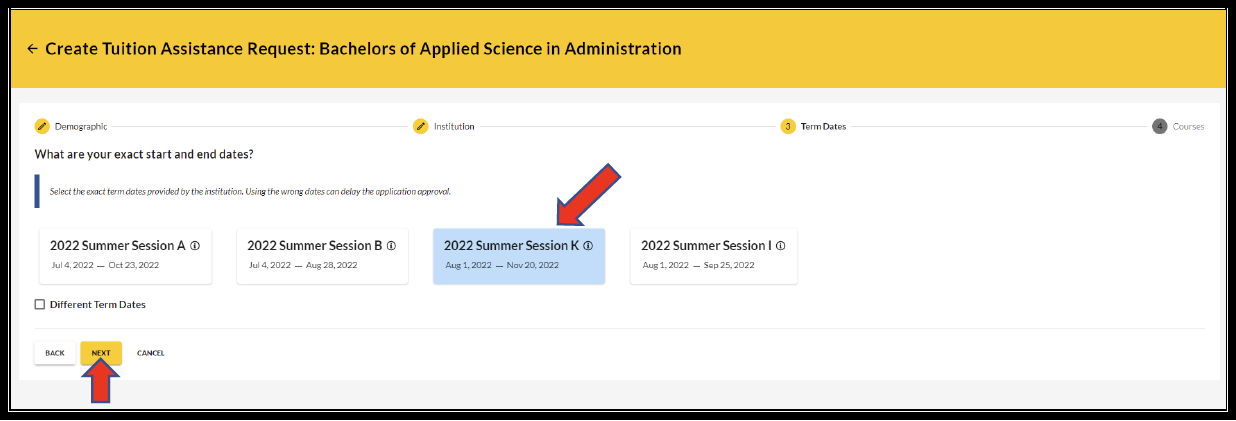
- Select correct ‘Start and End Dates’:
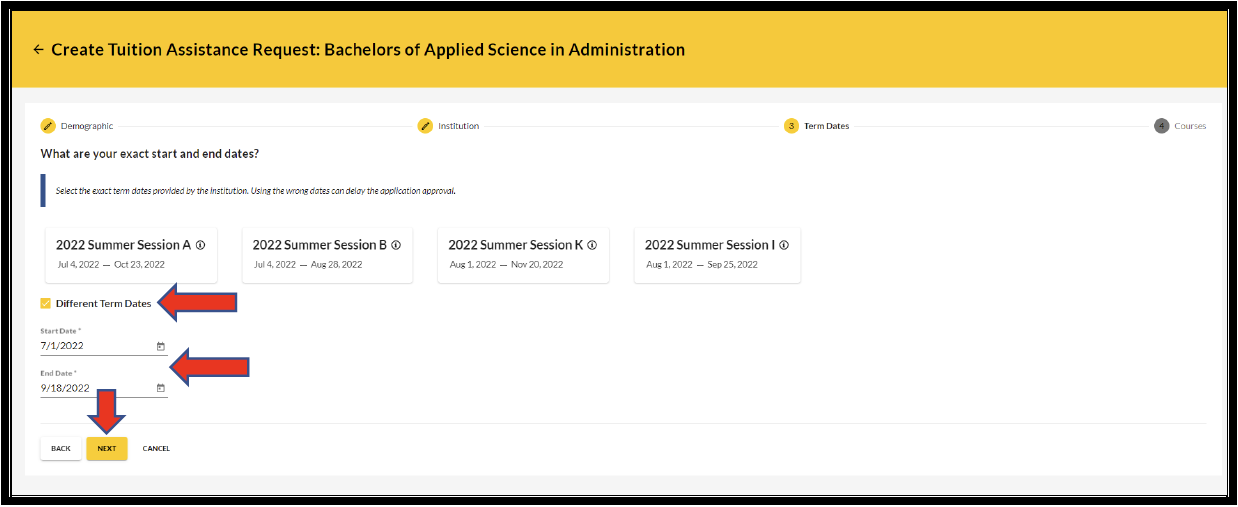
- If dates are not listed, then click on ‘Different Term Dates’ and input correct dates, then click ‘Next’:
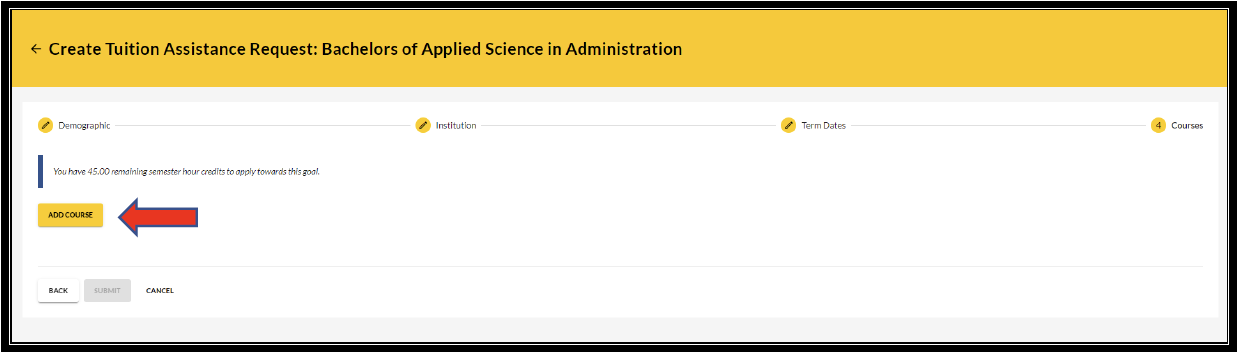
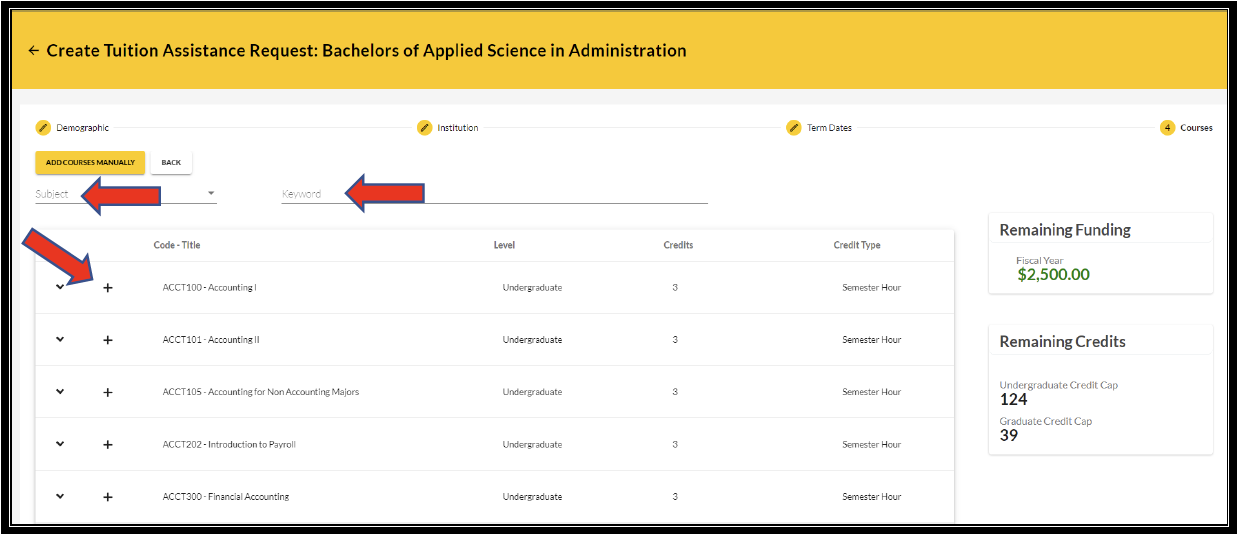
- Add your desired course by clicking on ‘Add Course’:
- Select your desired course by clicking on the ‘+’.
- NOTE: If your institution has added courses into ArmyIgnitED, the courses will be displayed on your screen. Courses can be filtered by ‘Code – Title’ and / or by ‘Keyword’.
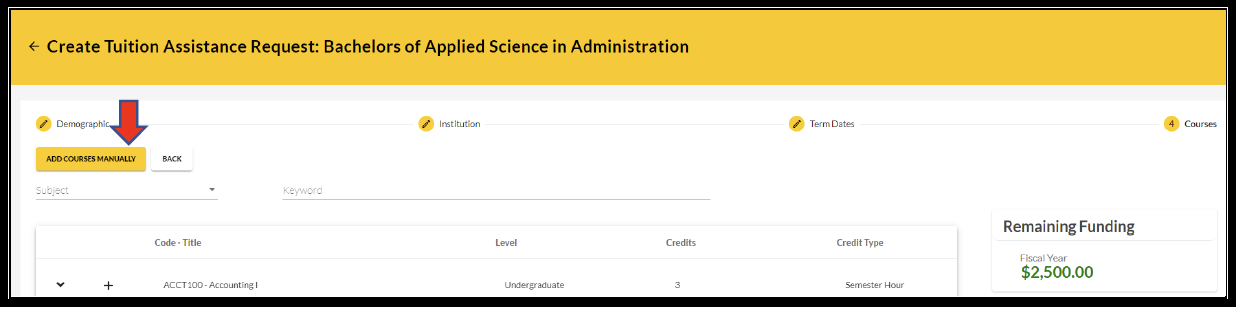
- NOTE: If your desired course is not listed, click on ‘Add Course Manually’:
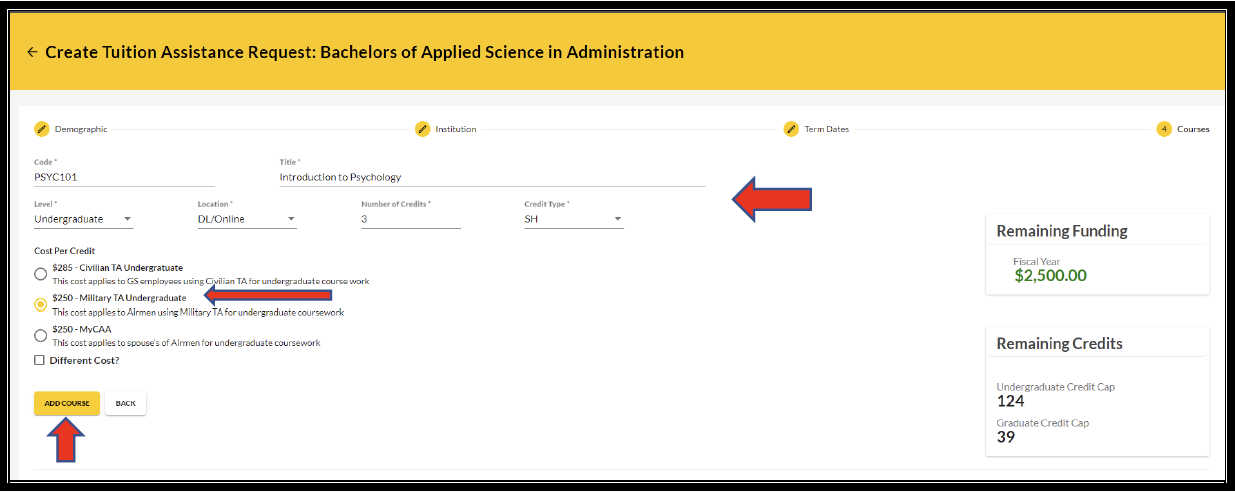
- Input ALL course information
- NOTE: Ensure that the course information matches your institution. Then click ‘Add Course’:
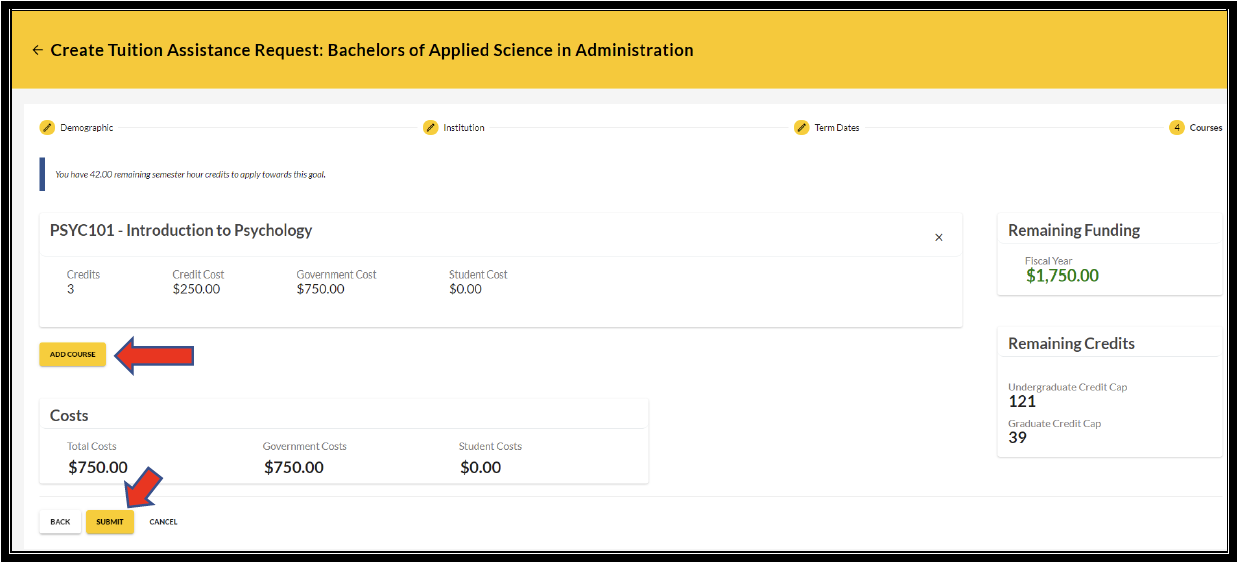
- Click on ‘Add Course’ if you want to add another course; otherwise click ‘Submit’:
You will then receive a confirmation that your TA request has been submitted. Please note your ‘TA Request ID’ and click ‘Finish’: (option to ‘Print TA Request’)

**Important Notes**:
- Submitting a Tuition Assistance request does not enroll you in the course. Once the Tuition Assistance request is approved, you must register for the course at your Academic Institution.
- With the new ArmyIgnitED 2.0, Soldiers must apply for tuition assistance (TA) in the system 60 to 7 days prior to the class start date.
- All TA must be approved prior to the start date of the course.
- If an eligible Soldier decides to use TA, Academic Institutions (AIs) will enroll him/her for a TA-funded course only after the TA is approved by the Army.
- Soldiers will be solely responsible for all tuition costs without this prior approval.
- A Soldier may pre-register for a course to secure a slot.
- TA is approved on a course-by-course basis and only for the specific course(s) and class dates that a Soldier requests.
- If the Army has not approved the funding, then the Soldier will be solely responsible for all tuition costs.