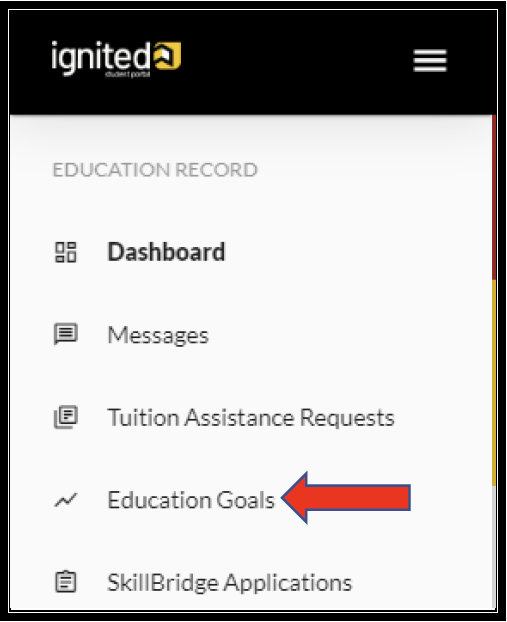
1. Click ‘Education Goals’:
Ignited menu with education related options, highlighted red arrow points to "Education Goals."


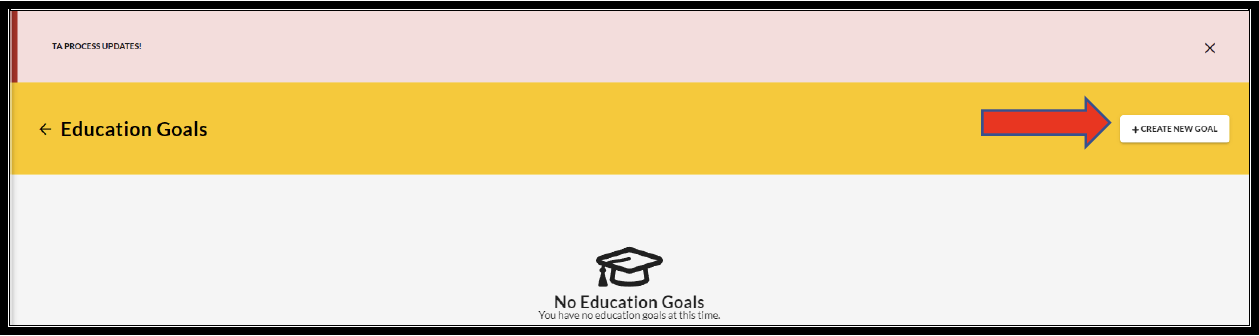
  1. Click ‘Create New Goal’:
TA Process updates. Yellow banner with "Education Goals," red arrow pointing to "Create New Goals" button


  1. See if the desired education goal can be requested – click on N/A and satisfy the alert: (this particular alert requires SM to go to the Education Center for the Education Counselor to update their ‘Education Level’) **UPDATE CIV ED LEVEL WITH YOUR S-1 ALSO**
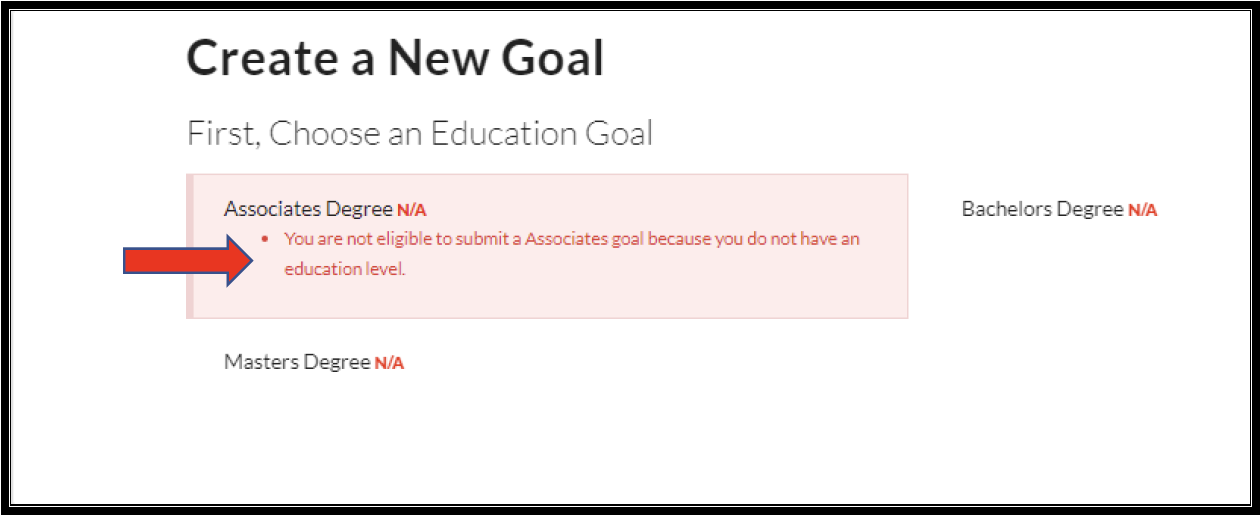
"Create a New Goal" screen with a red arrow pointing to an Associates Degree error message stating eligibility issues N/A.


  1. Once updated by the Education Counselor, the update automatically updates on SM record -> now click on desired ‘Education Goal’
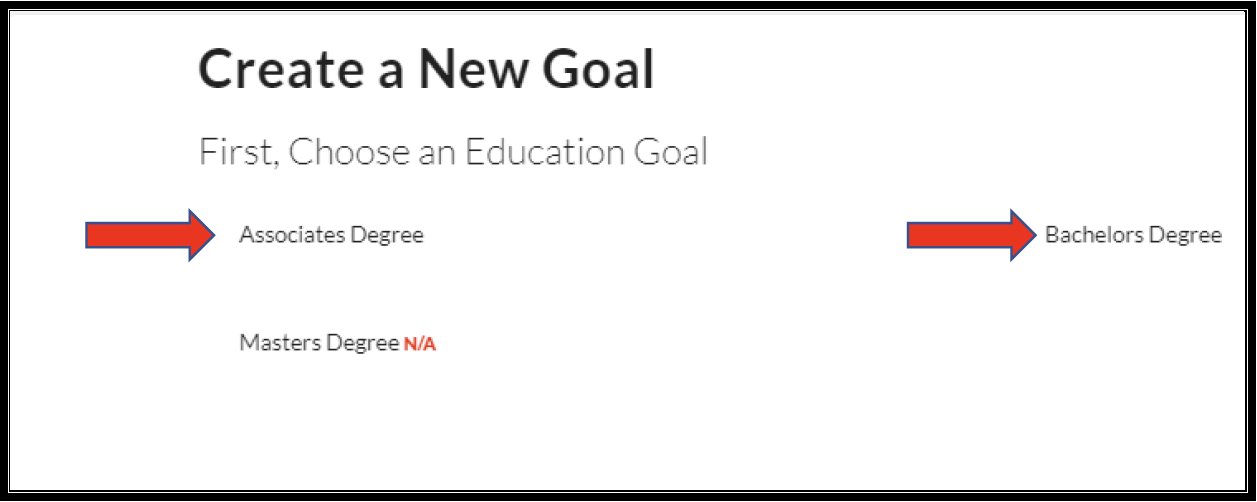
Create a New Goal screen with red arrows pointing to "Associates Degree" and "Bachelors Degree" options; "Masters Degree N/A".


  1. Complete ‘Institution’, ‘Institutional Student ID’, click ‘Next’:
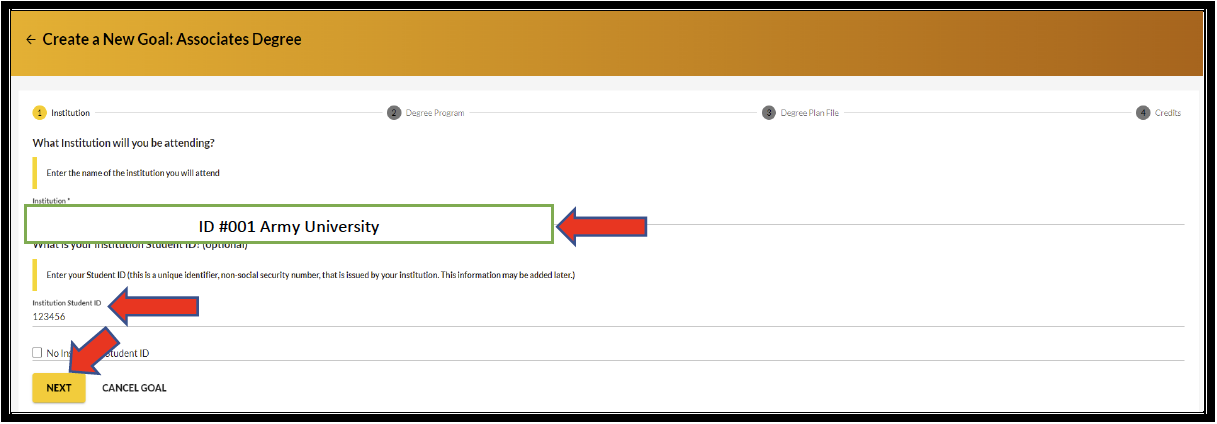
Create goal screen showing ID #001 Army University selected as the institution dropdown, and red arrows pointing to institution student ID and the "Next" button


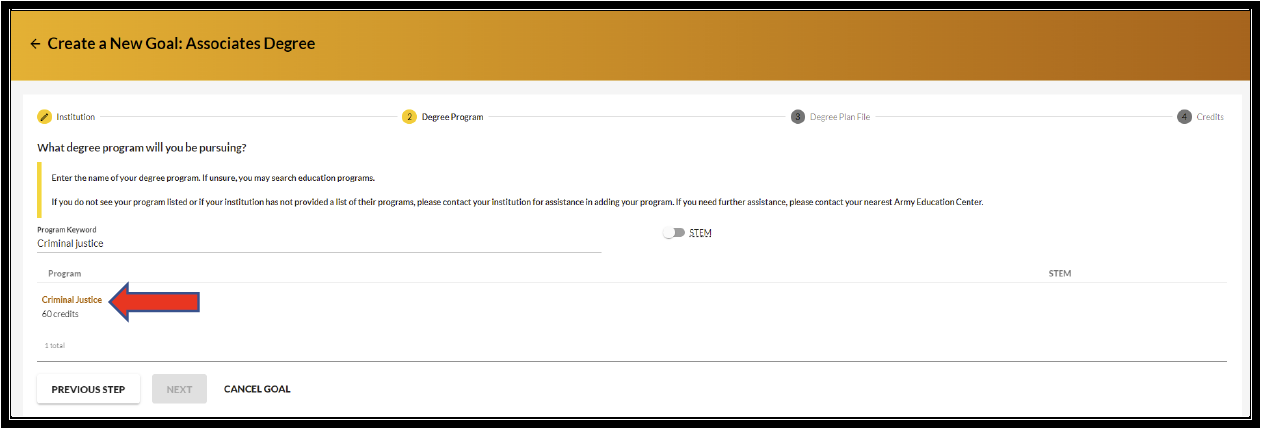
  1. Choose desired degree program -> can either scroll to locate OR type in keywords (identify if a Science, Technology, Engineering & Math – STEM program):
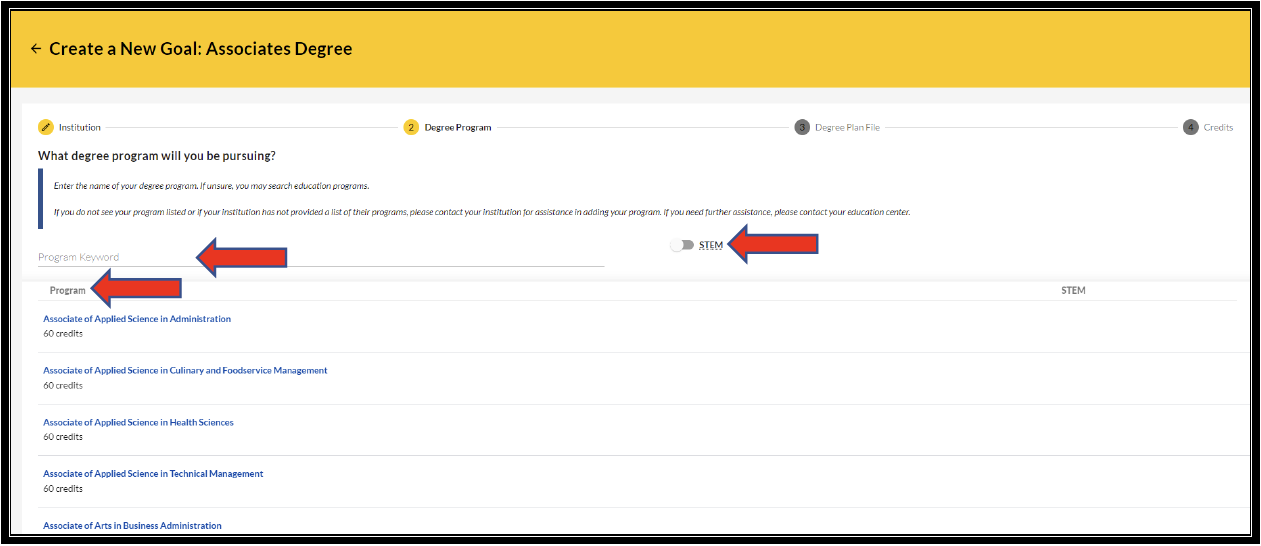
Create a New Goal screen for selecting an associate degree and program type with STEM option highlighted.


  1. Select the desired ‘Program’:
Create a New Goal screen with arrow pointing to selected program.


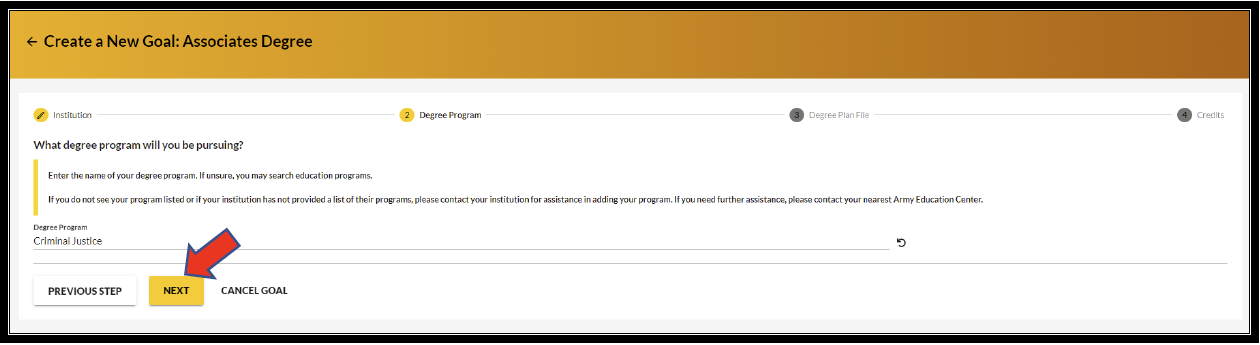
  1. Click ‘Next’:
Create a New Goal screen with arrow pointing to the option to upload a file, "choose file button" under Supporting documentation (optional) and an arrow pointing to the other option to check the box next to "no degree plan file". An arrow points to the "Next" button.


  1. Upload ‘Degree Plan’ or click ‘No Degree Plan File’ -> ‘Next’:
Create a New Goal screen with arrows pointing to the two options, upload a file under supporting documentation (optional) choose file button or checking the box next to "No Degree Plan File" and an arrow pointing to the "Next" button


NOTE:

The Soldier may upload a generic non-evaluated degree plan or an official Evaluated Degree Plan and/or drop/drag the file. The Soldier can only upload the Evaluated Degree Plan during Education Goal creation. After the Soldier has completed 2 courses, the official Evaluated Degree Plan will be required before the Soldier can continue to request TA. If the Evaluated Degree Plan is not uploaded during the Education Goal creation, the Soldier will have to send it to the Education Center for upload.


  1. Fill in requested information if applicable (previous college credits; if institution uses Quarter Hours INSTEAD of Semester Hours) -> ‘Submit Goal’ -> ‘Yes’:
Create a new goal page screen with submission confirmation popup and an arrow pointing to the yes option for are you sure you want to submit this goal?.


  1. Education reflects ‘SUBMITTED FOR REVIEW’: ID #
Education goals screen with Criminal Justice header and ID #001 Army University displaying next to submitted for review


The requested ‘Education Goal’ has been sent to the assigned Education Center for processing.


Content